← Back to workforcetimetracker.com
User Guide
Full feature walkthrough. Covers all editions: Standalone, Salesforce, Dynamics 365. Works the same way on Windows and macOS.1. Getting started
System requirements
- Windows 10 or Windows 11 (64-bit), or macOS 13 or later on Apple Silicon
- The .NET runtime is bundled with the application - nothing extra to install
- Approximately 70 MB disk space on Windows / 50 MB on macOS
- No internet connection required to use the app. One optional outbound call (a version check to
workforcetimetracker.com/version.jsonevery 4 hours) can be disabled in Settings.
Installation
Workforce Time Tracker is a portable application. No installation is required.
- Download the
.zipfile from the releases page - Extract to any folder (e.g.
C:\Tools\WorkforceTimeTracker\) - Run
WorkforceTimeTracker.exe
2. Main interface overview
The main window provides everything needed for daily time tracking in a compact, always-visible layout.
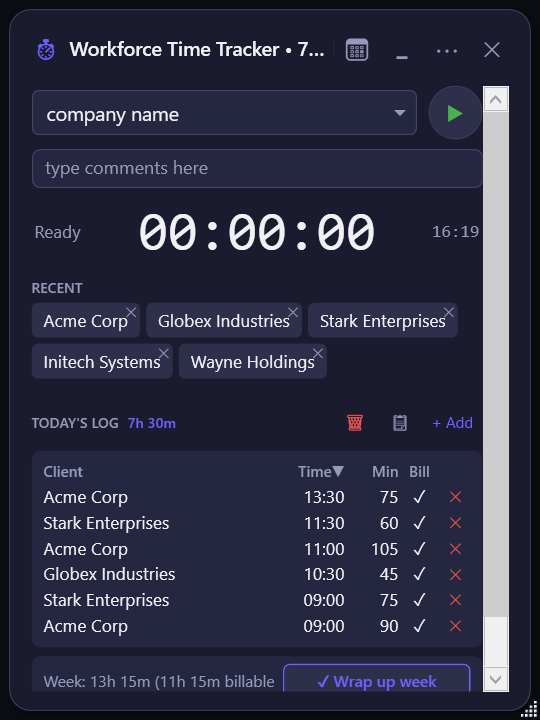
Dark mode (default)
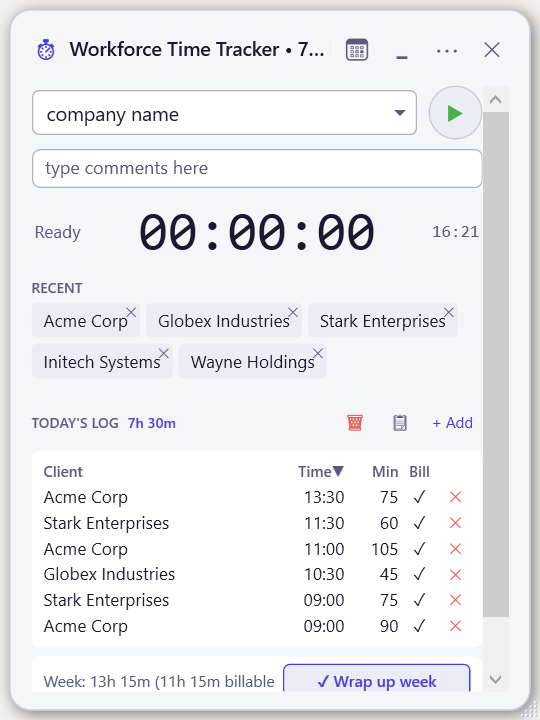
Light mode
Title bar controls
The title bar contains quick-access buttons for the most common actions (from left to right):
- Auto-tracking toggle — Enable or disable automatic tracking based on active window detection
- Theme toggle — Switch between dark and light appearance
- Compact mode — Collapse the window to a minimal single-line view
- Excel export — Export all entries to a structured Excel workbook
- Settings — Open the settings panel
- Admin console — Manage team clients and configuration
- Pin — Toggle always-on-top behaviour
- Close — Minimise to system tray (the application continues running)
Main area
- Client selector — Type or select a client name from the dropdown
- Notes field — Add a brief description for the time entry (e.g. "Admin Configuration")
- Timer display — Shows elapsed time for the current session
- Status indicator — Displays "Ready", "Tracking", or "Paused"
- Recent clients — Quick-select buttons for recently used client names
- Today's log — Lists all time entries recorded today
- Weekly summary — Shows total hours and billable amount for the current week
3. Tracking time
Starting a timer
- Type or select a client name in the client selector dropdown
- Optionally enter a description in the notes field
- Click the green play button or press
Ctrl+Sto start tracking
The timer display updates in real-time. The title bar also shows the running total, visible even when the window is partially obscured.
Pausing and stopping
- Pause — Click the orange pause button. The timer freezes but the session remains active. Resume by clicking play again.
- Stop — Click the red stop button. This saves the entry to today's log and resets the timer.
Switching clients
To switch to a different client mid-day, simply stop the current timer and start a new one with the new client name. You can also click any name in the "Recent" section to pre-fill the client field.
4. Today's log and summaries
The "Today's Log" section shows all time entries for the current day. Each entry displays the client name, notes, and duration.
Managing entries
- Edit an entry — Double-click any entry in the log to open the edit dialog. You can adjust client name, notes, start time, and end time.
- Add a manual entry — Click "+ Add" to create an entry for time you forgot to track (e.g. a meeting you didn't log in real-time).
- Copy summary — Click the clipboard icon to copy today's formatted time breakdown to your clipboard, ready to paste into status reports or messages.
- Clear today — Click the delete icon to remove all of today's entries (confirmation required).
Weekly summary
The bar at the bottom of the window shows your total hours for the current week and, if a billable rate is configured, the total billable amount.
5. Exporting to Excel
Click the export button in the title bar to generate an Excel workbook. The exported file contains multiple worksheets:
- Raw entries — Every individual time entry with date, client, notes, start, end, and duration
- Daily summaries — Total hours per client per day
- Weekly totals — Aggregated weekly hours and billable amounts
The file is saved to the same folder as the application by default. The filename includes the export date for easy identification.
6. Settings and configuration
Open settings by clicking the gear icon in the title bar.
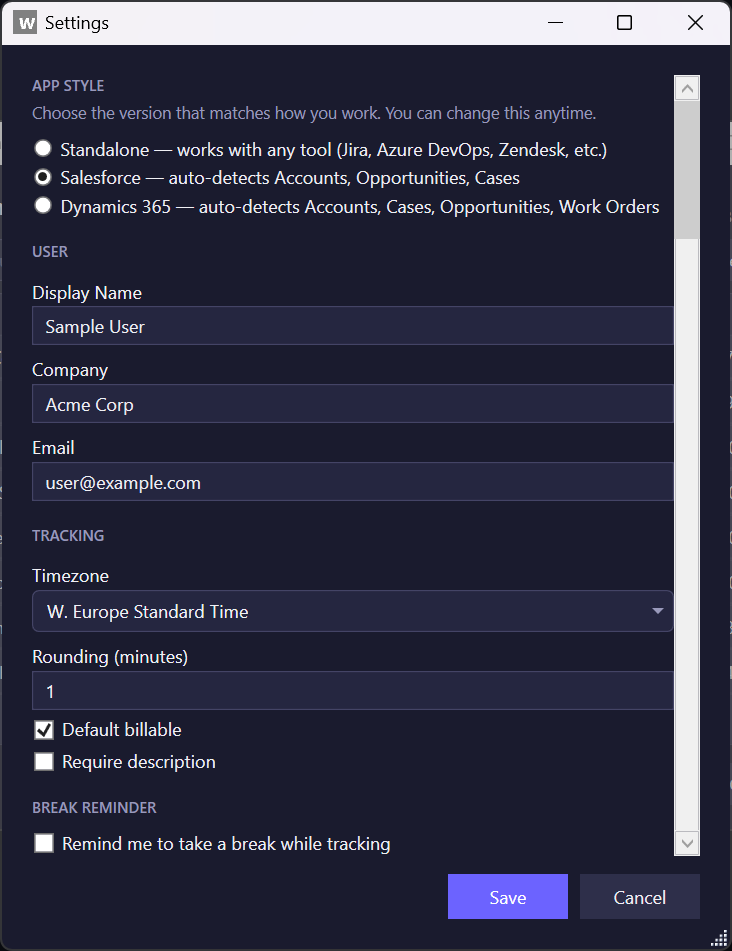
The Settings window with user and tracking configuration.
User section
| Field | Description |
|---|---|
| Display Name | Your name as shown in exports and reports |
| Company | Your organisation name for export headers |
| Contact email included in export metadata |
Tracking section
| Field | Description |
|---|---|
| Timezone | Timezone used for entry timestamps. Defaults to your system timezone. |
| Rounding (minutes) | Round time entries to the nearest N minutes (1 = no rounding) |
| Default billable | Whether new entries are marked as billable by default |
| Require description | If checked, the stop button requires a notes field entry before saving |
| Billable rate | Your hourly rate in EUR. Set to 0 to hide billable amount displays. |
7. Themes (dark and light mode)
The application supports both dark and light themes. Click the theme toggle button in the title bar to switch between them. Your preference is saved and persists between sessions.
- Dark mode — Reduced eye strain for extended use, especially in low-light environments
- Light mode — Higher contrast for bright environments or personal preference
Both themes are fully styled — all controls, backgrounds, and text adjust automatically.
8. Compact mode
Compact mode collapses the window to a minimal two-line layout showing only the client selector, notes field, timer, and control buttons. This is useful when you want the timer visible without taking up screen space.
Toggle compact mode by clicking the compact mode button in the title bar. Your expanded/compact preference is saved between sessions.
9. Always-on-top and system tray
Always-on-top
By default, the window stays above other applications. Click the pin button to toggle this behaviour. When pinned (always-on-top), the timer remains visible while you work in other applications.
System tray
Clicking the close button minimises the application to the Windows system tray rather than exiting. The timer continues running. Double-click the tray icon to restore the window.
To fully exit the application, right-click the system tray icon and select "Exit".
10. Keyboard shortcuts
| Shortcut | Action |
|---|---|
Ctrl+S | Start or resume timer |
Ctrl+P | Pause timer |
Ctrl+X | Stop and save entry |
Ctrl+N | Add manual entry |
Ctrl+E | Export to Excel |
Ctrl+T | Toggle theme |
Ctrl+M | Toggle compact mode |
11. Data storage and backup
All data is stored as plain JSON files in the same folder as the executable:
timeentries.json— All your time tracking entriessettings.json— User preferences, display name, hourly rate, licence keycustomers.json— Client name list
Backup
To back up your data, simply copy these JSON files to a safe location. To migrate to another machine, copy the entire folder (executable + data files).
Data format
Files are standard JSON and can be opened in any text editor. This ensures your data is never locked in a proprietary format.
workforcetimetracker.com/version.json every 4 hours - which can be disabled in Settings, in which case the app makes zero outbound calls. No telemetry, no analytics, no usage tracking; the licence is RSA-PSS-signed and validated locally.
12. Licensing
Free trial
The application includes a 14-day free trial. All features are available during the trial period. No payment information or account creation is required.
Activating a licence
- Purchase a licence at workforcetimetracker.com
- You will receive a licence key via email
- Open Settings in the application
- Enter your licence key in the Licence field
- Click Save — the licence is validated locally using cryptographic verification
Expiration and renewal
When a subscription expires, a 14-day grace period begins. After the grace period, the application shows a renewal notice. At no point are your data files restricted or deleted.
Pricing
- Monthly: EUR 5 per user per month
- Annual: EUR 50 per user per year (EUR 4.17/month equivalent)
Workforce Time Tracker is an independent third-party product. It is not affiliated with, endorsed by, or connected to Salesforce, Inc. "Salesforce" is a registered trademark of Salesforce, Inc.
Back to homepage